Why Chrome's New Gemini Feature Isn't Enough to Lure Users Back
When Google unveiled its latest AI addition to Chrome—called Skills—it seemed like a game changer for power users. This feature allows you to create shortcuts for frequently used prompts, streamlining your browsing experience. While it certainly piqued my interest for the first time in a while, I ultimately remain unconvinced to return to Chrome. Below, we dive into the details with a Q&A format that explores what Skills offers, why it's appealing, and why it's still not enough to win me back.
What exactly is Skills in Chrome?
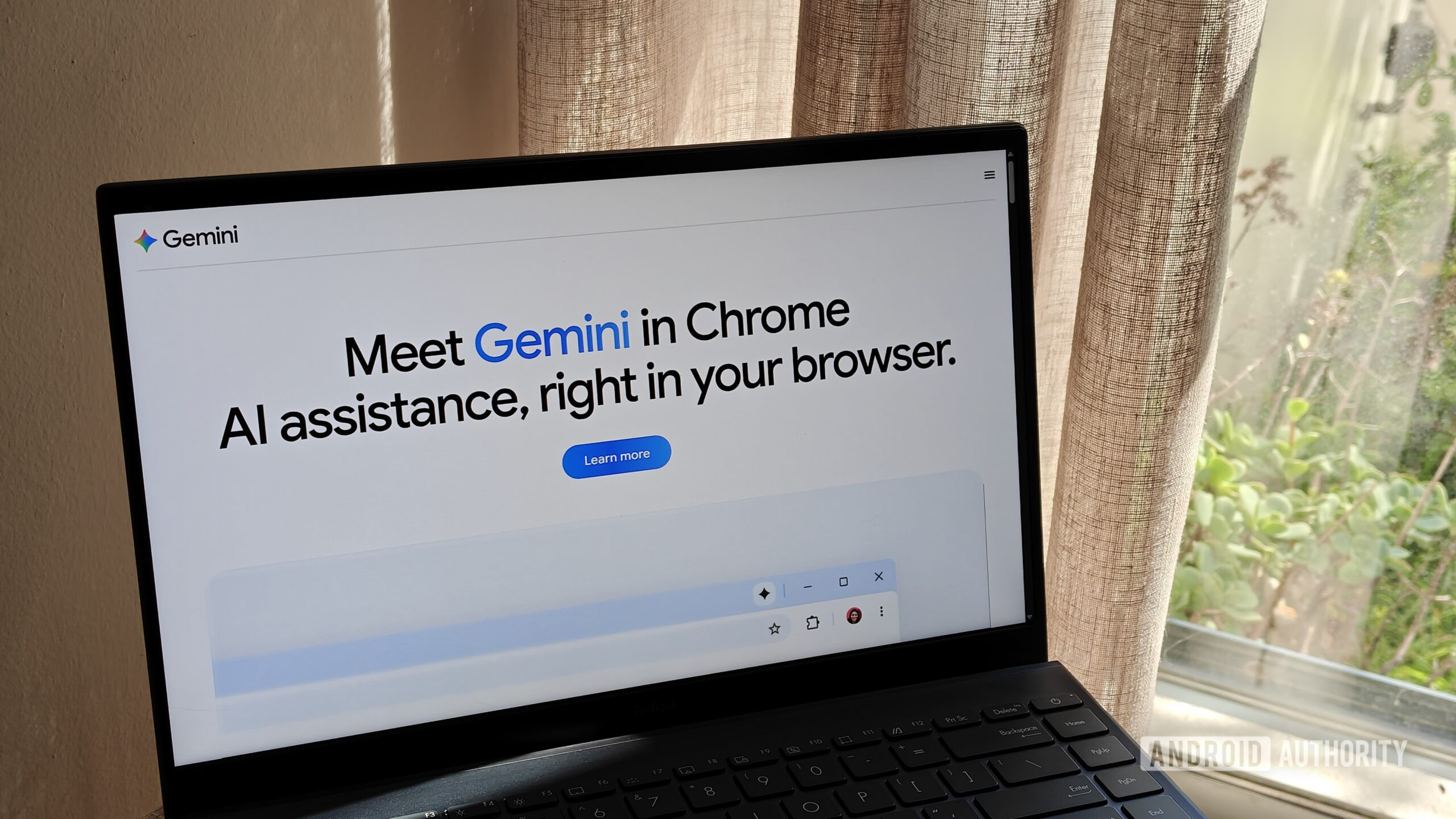
Skills is a new Gemini-powered feature in Google Chrome that lets you save custom shortcuts for specific AI prompts. Instead of typing out a long query each time, you can assign a simple trigger phrase (like "translate this") and the browser will automatically run the associated prompt using Gemini. For example, you might set a shortcut for "summarize this article" or "check spelling." The goal is to save time and reduce repetitive typing, making AI assistance feel more seamless and integrated into your daily browsing routine.
How does the feature work in practice?
Once enabled, you access the Skills setting from Chrome’s address bar or extensions menu. You define a prompt—such as "Explain this code snippet"—and pair it with a short keyword or phrase. When you type that keyword in the address bar and hit Enter, Chrome automatically queries Gemini with your predefined prompt, using the current page context. The response appears in a side panel or a popup. This eliminates the need to copy-paste or remember long queries. It’s particularly useful for repetitive tasks like grammar checks, translations, or quick fact-finding.
What makes Skills appealing compared to other AI tools?
The primary appeal is convenience. Unlike standalone AI assistants that require switching tabs or apps, Skills lives directly within the browser. The shortcuts eliminate friction: you don’t need to open a separate extension or website. Additionally, because it uses Gemini, it leverages Google’s vast knowledge and contextual understanding. For heavy Chrome users who rely on specific recurring tasks—like data extraction or language translation—this could save dozens of clicks per day. It also integrates with the page content automatically, so your prompts are contextually aware.
Why isn't the feature enough to make you switch back to Chrome?
While Skills is genuinely useful, it addresses only a narrow use case. For many users, the browser choice hinges on broader factors: privacy, customization, resource usage, and extension ecosystems. Chrome's memory consumption remains high, and its data collection practices raise concerns. Moreover, other browsers (like Edge or Brave) offer similar AI integrations or even more advanced features. For instance, Edge has Copilot built in with comparable shortcut capabilities. Switching browsers for one convenience feature—especially when alternatives already exist—feels like a small incentive compared to the overall trade-offs in performance and privacy. The novelty wears off quickly once you realize you can replicate the same in other browsers with extensions.
Who would benefit most from using Skills in Chrome?
The ideal user for Skills is a power user who spends hours daily in Chrome for tasks that involve repetitive prompts—such as content creators, developers, or researchers. If you frequently need to summarize articles, translate text, or check facts, the shortcut feature can shave off significant time. For anyone who already embraces Google’s ecosystem and doesn’t mind Chrome’s resource footprint, Skills is a welcome addition. However, casual users who only occasionally use AI may not find enough value to justify a switch if they’re already comfortable with another browser.
What alternatives exist for similar functionality in other browsers?
Several browsers now integrate AI assistants: Microsoft Edge offers Copilot with customizable shortcuts via a sidebar; Brave includes an AI chat (Leo) with similar inline capabilities; Opera has its own AI assistant Aria. Additionally, extension tools like Merlin or ChatGPT for Google add prompt shortcuts to any browser. Some users prefer Vivaldi for its customizability, where you can set keyboard shortcuts to trigger AI commands. The core idea isn’t unique to Chrome; the key difference is Gemini’s integration depth. Depending on your priorities, one of these alternatives may offer a better balance of features without losing the convenience of shortcut prompts.
Verdict: Is Skills a game changer or just a gimmick?
Skills is not a gimmick—it’s a thoughtful addition that demonstrates Google’s effort to embed AI natively. For Chrome loyalists, it’s a nice perk that enhances productivity. However, calling it a game changer would be an overstatement. The feature doesn't address the fundamental reasons why users leave Chrome (e.g., RAM usage, tracking). It’s a small convenience that can be replicated elsewhere. Unless Google addresses broader browser pain points, a single AI shortcut feature won’t sway the tide. My envy lasted only as long as it took to realize my current browser already does the same thing with an extension.